Write a skill
Turn a task you repeat into instructions your AI tools can follow.
A useful first skill captures something you already explain often: how to summarize a meeting, review a draft, or organize research.

Pro tip. If you would rather have an agent do the writing, install open-knowledge-write-skill first, from Settings → User → Skills Studio. Then skip to Have an agent write it.
Write it yourself
Create the skill
Expand Skills Studio at the bottom of the file sidebar. Hover its header and click New skill. A new project skill opens in the editor.
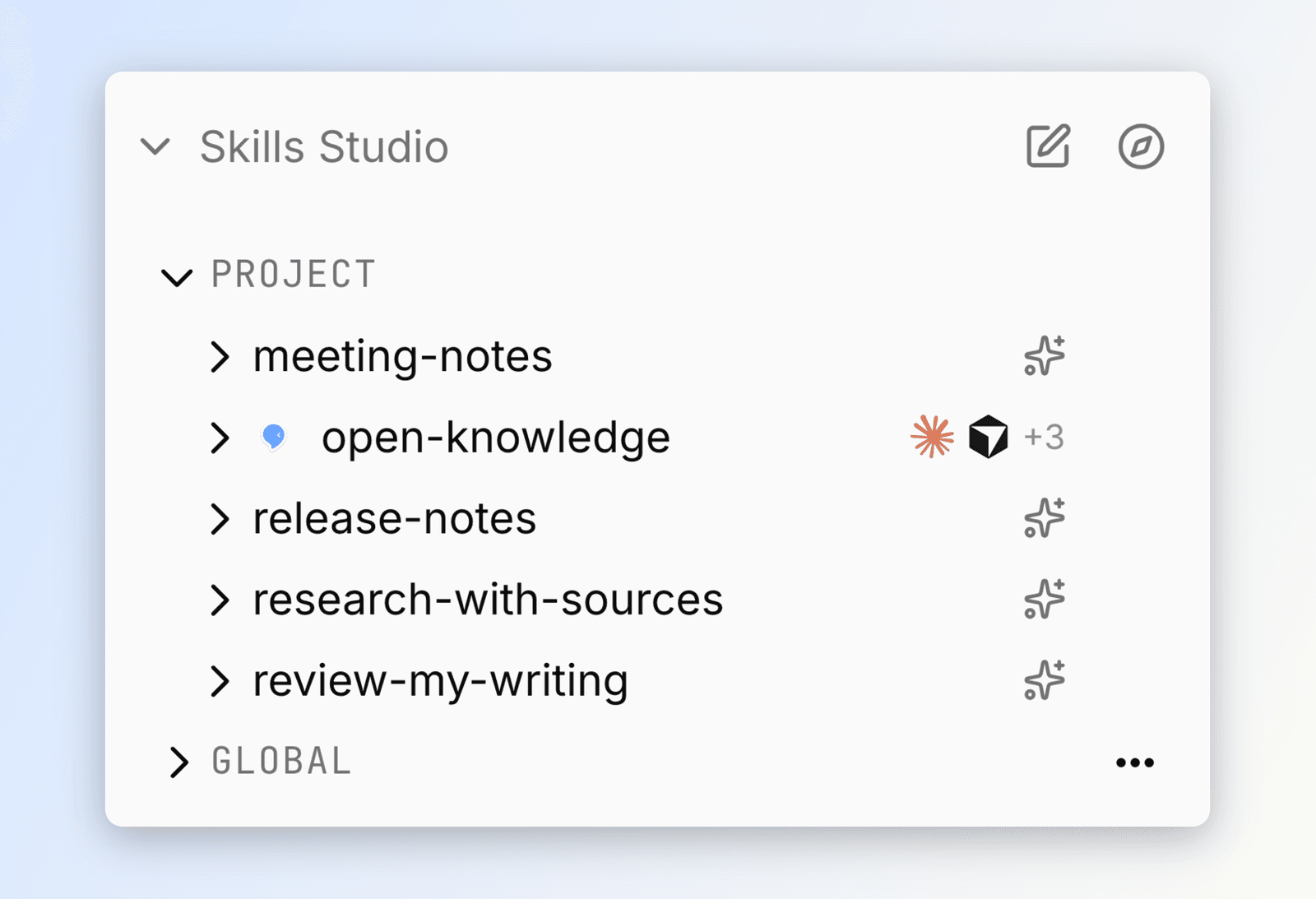
Name it and say when to use it
Give it a short name such as meeting-notes. Use lowercase letters, numbers, and hyphens.
The description tells your AI when to reach for the skill. Be specific about the situation:
Use when I paste a meeting transcript. Capture decisions, action items, and the person responsible for each one.
Write the instructions
Explain the task as you would to a teammate. Copy this in and change it to match your own folders and conventions:
---
name: meeting-notes
description: Use when I paste a meeting transcript. Capture decisions, action items, and the person responsible for each one.
---

# Meeting notes

1. Pull out the decisions and the action items.
2. Create a note in `meetings/` named for the meeting's date and topic.
3. Link each person to their page in `people/`.
4. Add every open action item to `todo.md`.

Keep the summary under ten lines. Quote a decision only when the wording matters.
The name and description are the skill's properties; everything below them is what your AI reads. Changes save as you work.
Choose your tools and try it
Open the skill's Install control and select the AI tools that should use it. Then give one of those tools a task matching the description, such as a meeting transcript.
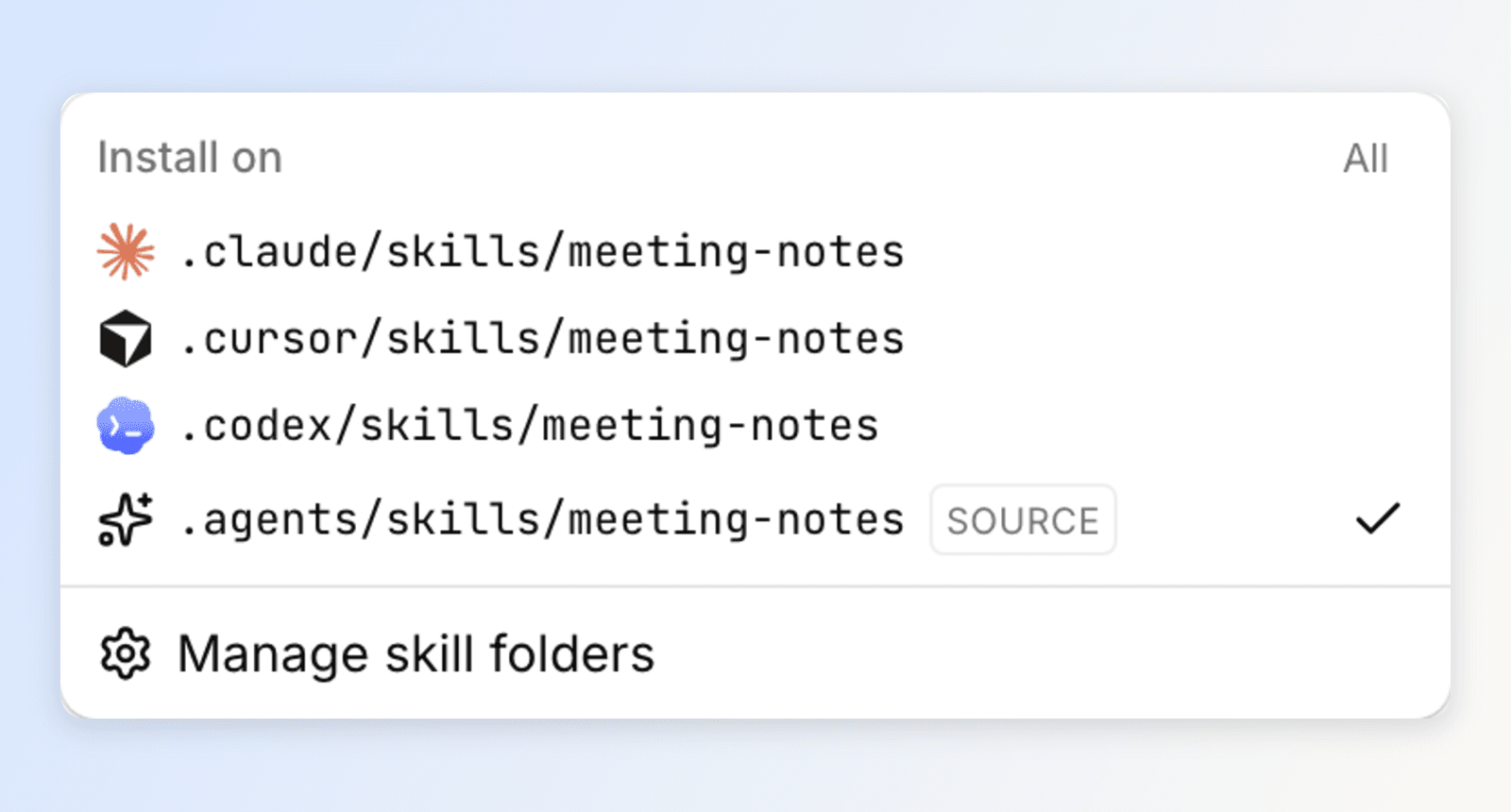
Refine the instructions after seeing the result. There is no separate publish step.
Have an agent write it
An agent can draft the skill for you, either from a description or from work you just finished together.
Install the skill that teaches this
Open Settings → User → Skills Studio, find open-knowledge-write-skill, and choose Install. The confirmation lists every folder it will write to. It installs for your user account, so you only do this once per machine.
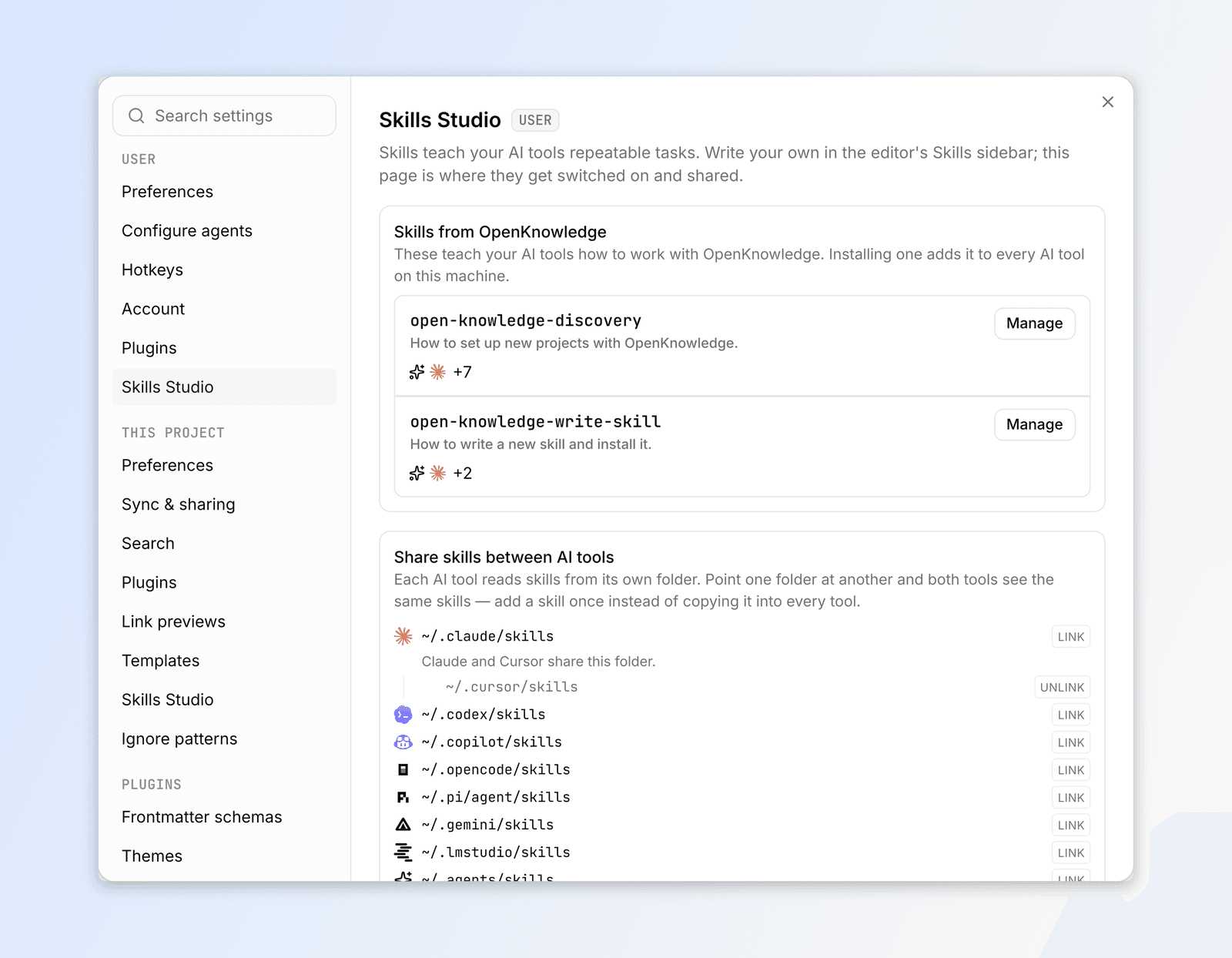
Ask for the skill you want
Give your AI the task in plain language:
Write a skill that turns my meeting transcripts into decisions and action items, with each person linked to their page in
people/.
Or turn a session you already had into a skill
The most useful skills come out of work you just did. At the end of a session, ask:
We just worked out how to review a draft for this project. Turn what we did into a skill so you do it the same way next time.
Review it and choose your tools
It appears in the dock and opens in the editor like any other skill. Tighten the description, then use Install to choose which AI tools get it.
Edit an existing skill
Skills you already have show up in Skills Studio on their own. There is nothing to import: OpenKnowledge reads the skills folders of your AI tools and lists what it finds, alongside the skills you wrote here.
- Click a skill to open it. Changes save to the skill's own folder, and every tool reading it picks them up.
- Ask an agent instead: "The
meeting-notesskill keeps missing action items. Fix its instructions." - A plugin skill is read-only; Edit a copy gives you an editable version.
- Editing an imported skill pauses its automatic updates, so your changes stay. See Keep it up to date.